Blog

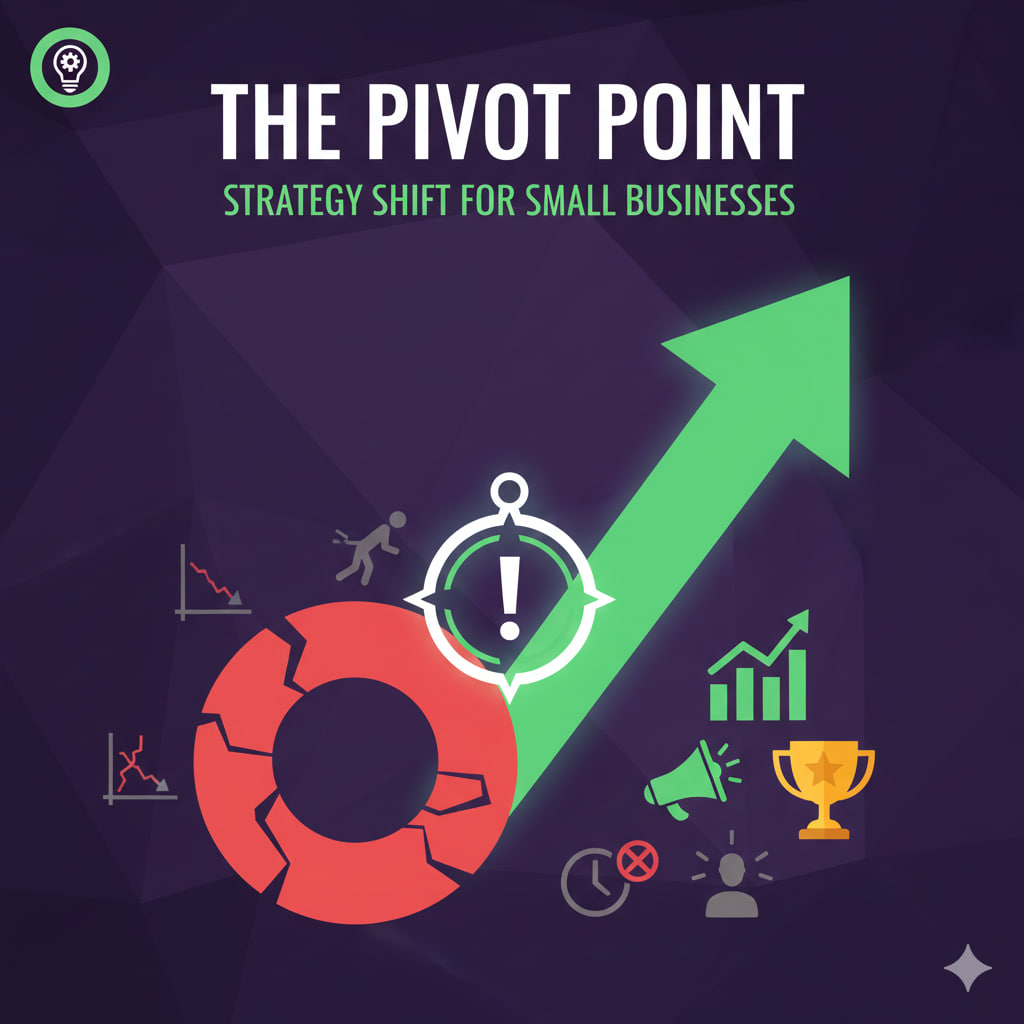
  • The Pivot Point: Signs Your Small Business Needs a Strategy Shift (And How to Do It).

    The Pivot Point: Signs Your Small Business Needs a Strategy Shift (And How to Do It).

    In the business world, “pivoting” isn’t just a buzzword; it’s a survival mechanism. A pivot occurs when a company shifts its business strategy to accommodate changes in its industry, customer preferences, or internal performance. It’s not an admission of failure—it’s an evolution based on data.

    History is full of successful pivots: Slack started as a failed video game’s internal chat tool, and YouTube began as a video dating site.


    🚩 5 Warning Signs You’re at the “Pivot Point”

    Recognizing the need for change before your capital runs dry is the difference between a successful shift and a shuttered shop.

    1. Stagnant Growth Despite High Effort: You’re working harder than ever, but your revenue or user base has plateaued for 6+ months.
    2. High Customer Acquisition Cost (CAC): It costs you more to get a customer than that customer is actually worth to your business (LTV).
    3. The “Feature” is the Product: You notice your customers are only using one small part of your service and ignoring everything else.
    4. Market Shifts: A new technology or competitor has made your primary offering less “essential” and more “nice-to-have.”
    5. Employee Burnout/Disengagement: If your team no longer believes in the mission because the results aren’t following, the mission likely needs a refresh.

    🛠️ How to Pivot Without Crashing

    A pivot is a “change in vision, not a change in destination.” Here is how to execute it systematically:

    Phase 1: The Post-Mortem

    Analyze what actually worked. Use the Pareto Principle: identify the 20% of your activities that provided 80% of your results. That 20% is usually where your new direction lies.

    Phase 2: The MVP (Minimum Viable Pivot)

    Don’t rebuild the entire company in secret. Create a “lite” version of your new strategy and test it with a small group of existing customers.

    Shutterstock

    Explore

    Phase 3: The “Kill Your Darlings” Stage

    This is the hardest part. You must stop spending money and time on the old strategy. Keeping one foot in the old world and one in the new leads to “strategic drift,” which drains resources and confuses your brand.

    Phase 4: Over-Communicate

    A pivot can be scary for employees and investors. Be transparent about:

    • Why the change is happening (show the data).
    • What the new goals look like.
    • How it benefits them in the long run.

    💡 The Pivot Spectrum

    Not every pivot is a total 180-degree turn. You might consider:

    • Zoom-In Pivot: Focusing on a single feature of your previous product.
    • Customer Segment Pivot: Selling the same product but to a completely different type of buyer.
    • Channel Pivot: Changing how you deliver your value (e.g., shifting from a retail store to a subscription-based delivery model).
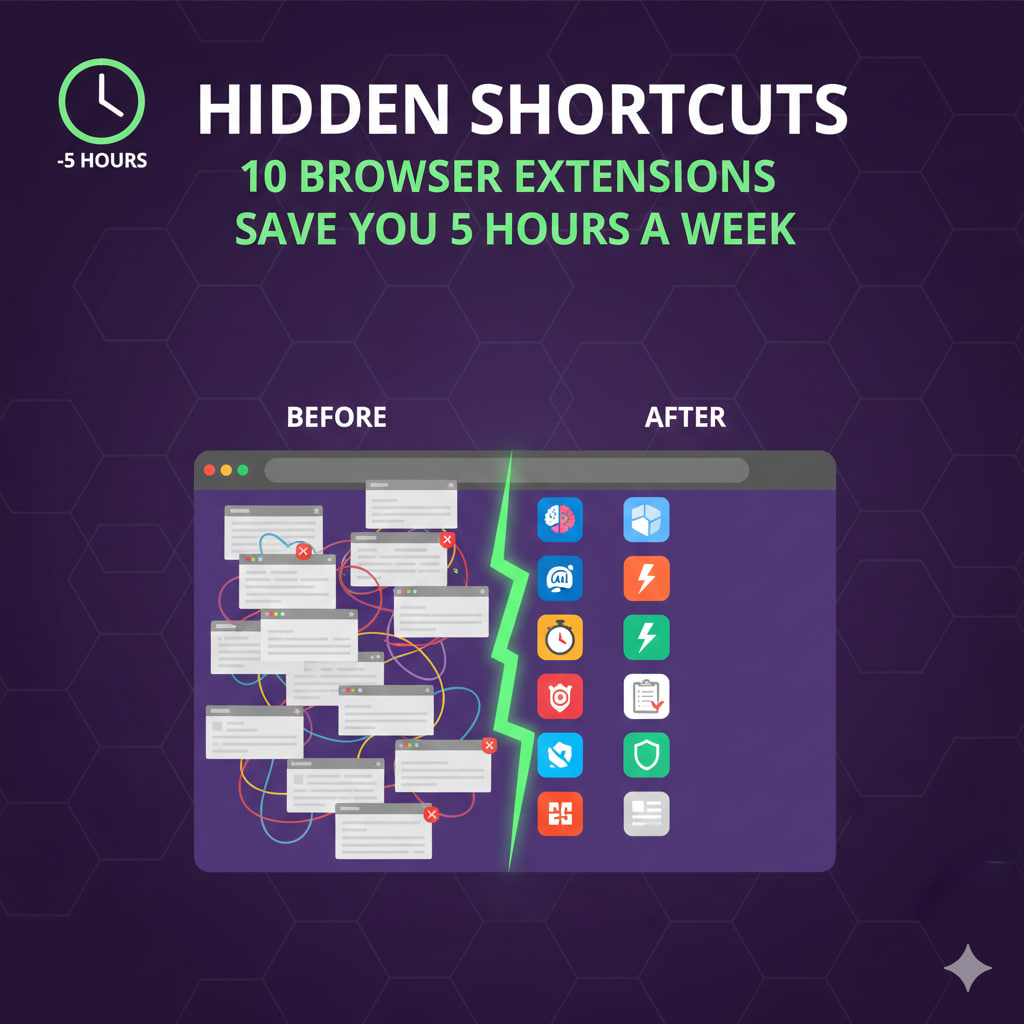
  • Hidden Shortcuts: 10 Browser Extensions That Will Save You 5 Hours a Week.

    Hidden Shortcuts: 10 Browser Extensions That Will Save You 5 Hours a Week.

    The average person spends over six hours a day in a web browser. Most of that time isn’t spent working—it’s spent navigating. We fumble with tabs, wait for pages to load, manually copy-paste data, and get derailed by ads.

    By automating the “boring stuff,” these 10 extensions can effectively hand you back 45–60 minutes of your life every single day.


    🧠 The Knowledge Boosters

    • TubeOnAI: Instead of watching a 20-minute webinar, use this to get a bulleted summary of key points in 30 seconds.
    • Perplexity: Stop scrolling through 10 Blue Links. This adds an AI search layer that answers your questions with cited sources directly in your search bar.
    • SwiftRead: Uses RSVP (Rapid Serial Visual Presentation) technology to help you read articles and PDFs up to 3x faster without losing comprehension.

    🛠️ The Automation Suite

    • Scribe: Does your team keep asking how to do the same task? Turn on Scribe, do the task once, and it automatically generates a step-by-step PDF guide with screenshots.
    • Bardeen: A “no-code” automation powerhouse. You can set it to “Scrape this LinkedIn profile and save it to my Notion” with one click.
    • Bitwarden: It’s more than security; it’s speed. Autofill complex logins and credit card info instantly so you never have to hit “Forgot Password” again.

    🎯 Focus & Tab Management

    • Workona: If you jump between projects, Workona saves your “state.” One click switches your entire browser from “Work Project A” tabs to “Personal Finance” tabs.
    • uBlock Origin Lite: In 2026, pages are heavy with trackers. This (Manifest V3 compatible) version strips the junk, making pages load up to 30% faster and saving your CPU (and battery).
    • OneTab: The “Panic Button” for tab-hoarders. It collapses 50 open tabs into one simple list, reducing your memory usage by 95% and clearing your mental clutter.

    🎥 Communication

    • Loom: Stop typing long emails. Record a 30-second screen-share with your voice. It’s faster to record, faster to watch, and eliminates the “I don’t understand” follow-up email.

    📊 The “5-Hour” Breakdown

    Task CategoryOld Way (Weekly)With ExtensionsTime Saved
    Research/Reading8 Hours4 Hours4 Hours
    Logins & Forms45 Mins5 Mins40 Mins
    Tab Management1 Hour10 Mins50 Mins
    Total Weekly Savings~5.5 Hours
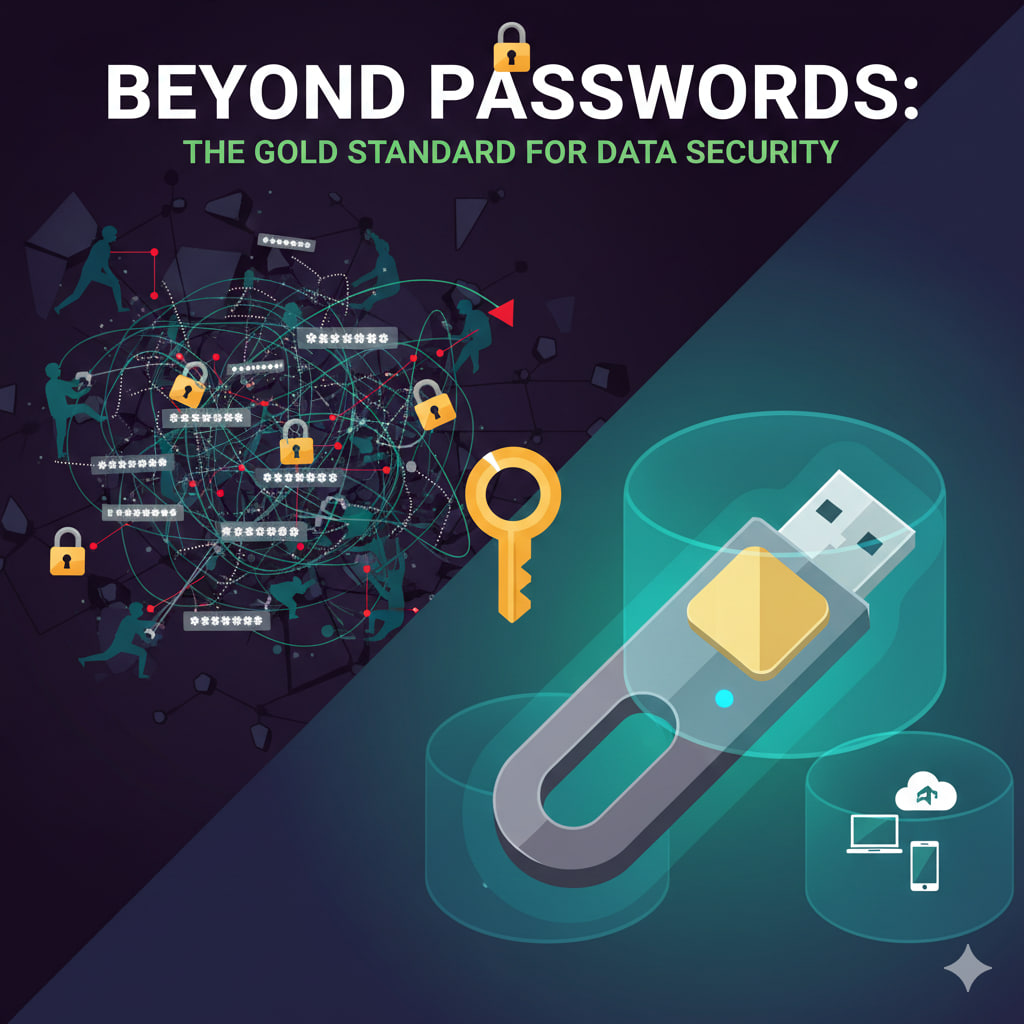
  • Beyond Passwords: Why Physical Security Keys are the New Gold Standard for Personal Data.

    Beyond Passwords: Why Physical Security Keys are the New Gold Standard for Personal Data.

    You’ve likely been told for years that a “strong password” is your best defense. But in an era of sophisticated phishing and massive data breaches, even a 20-character string of gibberish isn’t enough. Hackers don’t “guess” passwords anymore; they steal them through fake login pages or buy them on the dark web.

    Enter the Physical Security Key: a tiny device that looks like a USB thumb drive but acts as an unhackable digital bodyguard.


    🛡️ What is a Physical Security Key?

    Known technically as U2F (Universal 2nd Factor) or FIDO2 tokens, these devices (like YubiKey or Google Titan) replace or supplement your traditional two-factor authentication (2FA).

    Instead of typing in a code sent via SMS—which can be intercepted via SIM-swapping—you physically touch or plug in your key to prove it’s really you.


    🚀 3 Reasons It Outperforms Every Other Method

    1. It is Phish-Proof

    Standard 2FA (like a code texted to your phone) can be stolen. If a hacker tricks you into entering your code on a fake website, they have full access. A physical key, however, communicates directly with the browser. It will refuse to provide the “handshake” if the website URL doesn’t match the real service (e.g., g00gle.com vs google.com).

    2. No More “SMS Fatigue”

    We’ve all been there: waiting for a text code that never arrives, or fumbling with a 6-digit number before the timer runs out. With a physical key:

    • Plug it in.
    • Tap the gold sensor.
    • You’re in.

    3. Immunity to Remote Attacks

    A hacker in another country can guess your password. They can even try to trick your mobile carrier into porting your number. But they cannot physically touch the device hanging on your keychain. It bridges the gap between the digital and physical worlds in a way software simply cannot.


    🛠️ How to Get Started

    1. Buy Two: Always buy a primary key and a backup. If you lose your only key, getting back into your accounts can be a nightmare.
    2. Register Your Main Accounts: Start with your email (the “master key” to your life), then move to banking and social media.
    3. Keep the Backup Safe: Store your second key in a secure location, like a home safe or a trusted relative’s house.

    ⚠️ A Common Misconception

    “If I lose my key, I’m locked out forever.” Not necessarily. Most services allow you to set up “Recovery Codes” or use a secondary 2FA method as a fallback. However, the goal of a security key is to be so secure that it is the primary gatekeeper.

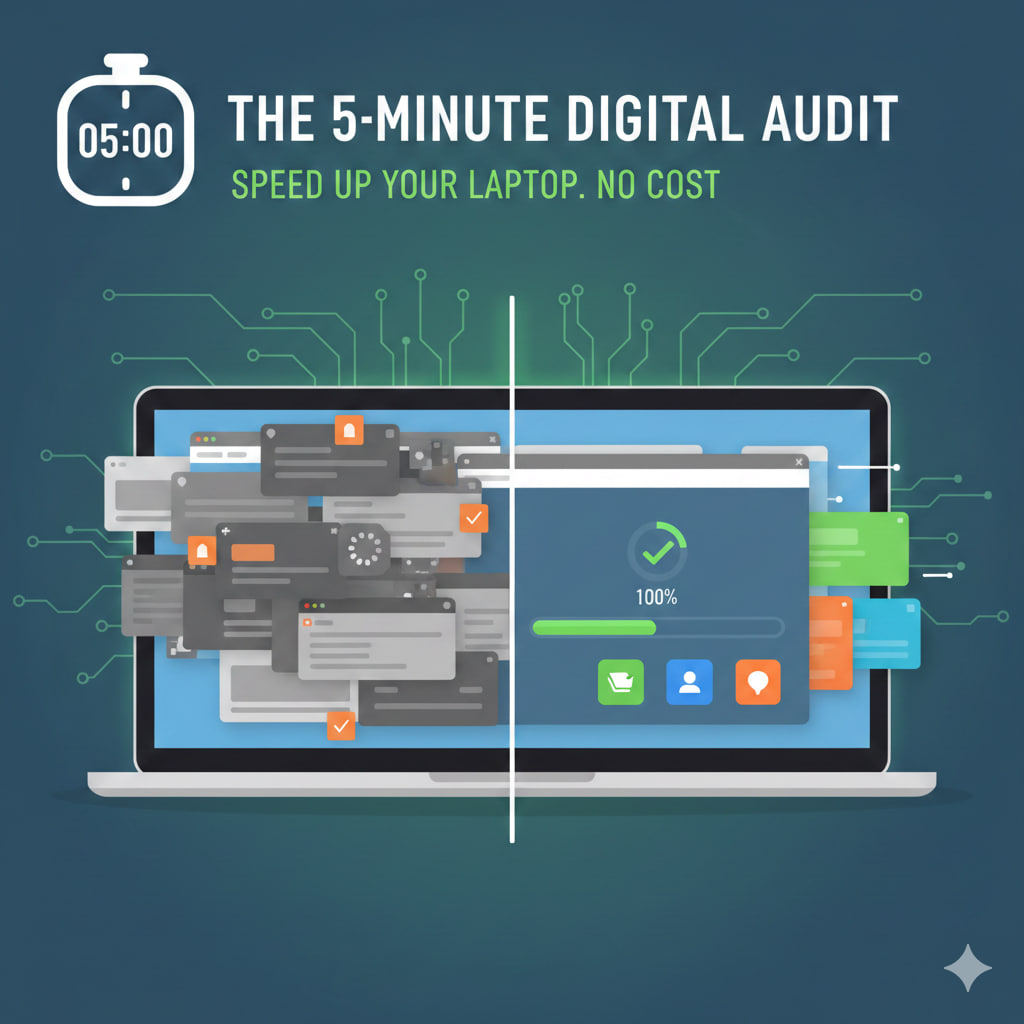
  • The 5-Minute Digital Audit: How to Speed Up Your Laptop Without Spending a Cent.

    The 5-Minute Digital Audit: How to Speed Up Your Laptop Without Spending a Cent.

    Is your laptop starting to feel more like a brick than a breakthrough? Before you start eyeing that expensive new model, give it a quick “health check.” Most performance issues aren’t caused by aging hardware, but by digital clutter—the software equivalent of junk mail piling up in your hallway.

    Here is a lightning-fast guide to reclaiming your speed in five minutes flat.


    ⏱️ Minute 1: Clear the “Startup Ghost” List

    Many apps think they are the most important thing on your computer and set themselves to launch the moment you log in. This chokes your RAM before you even open a browser.

    • Windows: Press Ctrl + Shift + EscStartup apps. Disable anything you don’t need the second you turn on your PC (e.g., Spotify, Steam, or printer helpers).
    • Mac: Go to System SettingsGeneralLogin Items. Click the “−” icon for unnecessary apps.

    ⏱️ Minute 2: The Browser Tab Purge

    If you have 40 tabs open, your laptop is working overtime to keep them all “alive.”

    • Action: Close the tabs you aren’t using.
    • Pro Tip: Use an extension like OneTab or Workona to collapse all open tabs into a simple list. This frees up nearly all your memory instantly without losing your research.

    ⏱️ Minute 3: Zap the “Zombie” Processes

    Sometimes a program doesn’t close correctly and continues to eat resources in the background.

    • Action: Open your Task Manager (Windows) or Activity Monitor (Mac).
    • Look for: Any process using more than 10-15% of your CPU that you aren’t actively using. Hit End Task or Quit.

    ⏱️ Minute 4: The 10% Storage Rule

    SSD drives (which most modern laptops use) slow down significantly once they hit 90% capacity. They need “breathing room” to move data around.

    • Action: Find your “Downloads” folder. Sort by size. Delete that 4GB 4K video you watched once, or those old software installers (.exe or .dmg files) you no longer need.

    ⏱️ Minute 5: The “Old School” Restart

    It sounds like a cliché, but “turning it off and on again” clears the system’s temporary cache and flushes out minor software bugs that accumulate over days of “Sleep Mode.”

    • Action: Perform a full Restart, not just closing the lid.

    The Result: By clearing your startup list and freeing up a bit of disk space, you’ve likely reduced your “boot-to-work” time by 30% or more.